
Multiple members had a discussion on how to create a workflow that would synchronize devices from an Entra ID dynamic group into ControlUp using tags. The matching issue is caused by Entra ID and ControlUp having different device identifiers. Various solutions were presented, such as using a custom query or the Split String node, and eventually a solution was found using the Get Custom Data node. Further details and a visual example can be seen in the discussion.
Read the entire ‘Creating a Device Matching Workflow in ControlUp’ thread below:
[HELP] Workflow: Matching Entra ID Group Members to ControlUp Devices by Computer Name
Hi everyone,
I’ve been trying to build a workflow that syncs devices from an Entra ID dynamic group into ControlUp by applying a tag – and I’ve been stuck for hours. I’d really appreciate any help or pointers!
What I’m Trying to Do
Fetch all device members from an Entra ID dynamic group called "Managed Windows Devices – Test"
Loop over each device in that group
Match each Entra device to its corresponding device in ControlUp
- Apply the tag testgrp1 to the matched ControlUp device
The Matching Problem
The tricky part is that Entra ID and ControlUp use different device identifiers, so I can’t match on ID directly.
My plan is to match on computer name, but there’s a naming difference:
• Entra ID returns the device name as plain displayName → e.g. DESKTOP-ABC123
• ControlUp stores the device name as displayName followed by a suffix → e.g. DESKTOP-ABC123.WORKGROUP or DESKTOP-ABC123.DOMAIN.LOCAL
So I need to match only on the computer name prefix, stripping any domain suffixes from the ControlUp side.
[Start — Manual]
↓
[Step 1] Entra ID → Get Group Members
Group: "Managed Windows Devices – Test" | Limit: 999
↓
[Step 2] For Loop → Iterate over each group member (counter: i)
│
├── [Step 3] ControlUp DEX → List Devices
│ ⚠️ No filter applied — returns unfiltered list of up to 100 devices
│ ↓
├── [Step 4] ControlUp Compliance → Get Device Details
│ device_id = {{azure_ad_get_group_members[i].displayName}}
│ ⚠️ Passing displayName where a device ID is expected
│ ↓
└── [Step 5] ControlUp → Update Tag (tag: "testgrp1")
device_id = {{azure_ad_get_group_members[i].deviceId}}
⚠️ Passing the Entra Object ID, not the ControlUp internal device ID
any ideas @member @member @member @member?
depends if we want to Bulk them , or one by one. The fast change would be , inside the loop , we do get device where dns_friendly_name OR name contains the EntraID displayName
or we can use the SplitString node to extract from the dns_friendly_name OR name the computer name only. Ex: computerName.domain.local -> split string -> [0:"computerName",1:"domain",2:"local"] . That way we can use element 0 to match the EntryID name .
@member would a custom query not help with a wildcard? To find the device ?
custom query is a good option , as long as we know exactly the fields we want to restrict to (bring less props back).
I have place the node ‘Split String’ between ‘List Devices’ and ‘Get Device Details’ and it indeed output the Displayname of the computer correctly.
But the Get Device Details (1) gives following issue:
Error message:
“`▼
{
"message":"Failed to get device details for {{splitString_1_xxxxx.result[0]}}: 404 Client Error: Not Found for url: https://eastus-prod-dex-apim.prod.controlup.com/compliance/devices/%7B%7BsplitString_1_xxxxx.result%5B0%5D%7D%7D. Details: {‘metadata’: {‘cuRequestId’: ‘f280fb1a-2e34-4cad-b643-c9d2116d81ee’, ‘orgId’: ‘5a83f22e-ad90-4f4b-ae77-57b0966ac798’, ‘userId’: ‘232b3636-cfcc-4b9d-a7d8-c7d701d6be19’}, ‘error’: {‘message’: ‘Internal server error’, ‘code’: 3001, ‘status’: 404, ‘data’: {‘resource’: ‘device’, ‘identifier’: ‘{{splitString_1_xxxxx.result[0]}}’}}}"[collapse]
}“`
Input
“`▼
{
"input":
▼
{
"device_id":
▼
{
"raw":"{{splitString_1_xxxxx.result[0]}}
",
"actual":""
}
,“`
Result:
“`▼
{
"status":"failed",
"result":{},
"final_error":
▼
{
"message":"Failed to get device details for {{splitString_1_xxxxx.result[0]}}: 404 Client Error: Not Found for …"[expand],
"error":"final_error"
}
}“`
I’m thinking that ‘Split String’ is correct because it gives actual device name, but ControlUp adds suffixes sometime ‘.WORKGROUP’ and other times the full domain name like ‘.MyDomainName.Com‘. Maybe i have to split this also to get a clean computername-only object?
I can attach the full json export file if you want to see it.
the "Get Device Details" from "Controlup for Compliance" needs a device_id, not a device name. you would need to pass the _id from the List Devices object.
@member If you use the Get Custom Data node under ControlUp for Desktops and select _devices as index and then run the following query in your loop this will find the device matching your search and out put the id and name.
“`{
"data_query": {
"query": {
"bool": {
"filter": [
{
"bool": {
"must": [
{
"wildcard": {
"name.keyword": {
"value": "EXAMPLEDEVICE*",
"case_insensitive": true
}
}
}
]
}
}
]
}
},
"size": 50000,
"_source": [
"_device_id",
"name"
]
},
"export": false
}“`
you can replace EXAMPLEDEVICE with = {{azure_ad_get_group_members[i].displayName}}
the output will look like this
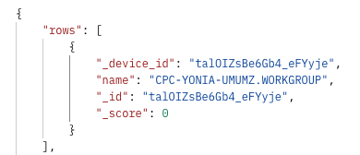
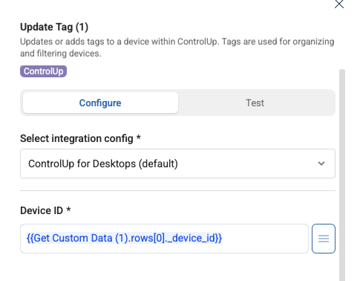
so in your next node to set a tag or something you can use {{Get Custom Data (1).rows[0]._device_id}}
this is the controlup Device ID and is often used in other nodes where you want to do an action 🙂
Continue reading and comment on the thread ‘Creating a Device Matching Workflow in ControlUp’. Not a member? Join Here!
Categories: All Archives, ControlUp for Compliance, ControlUp for Desktops