
Some Windows servers appear as offline, but when a user logs in through the hypervisor’s remote console, they show as online again. A screenshot was requested and a possible solution was suggested. It was advised to submit a case to support@controlup.com with logs and screenshots for further analysis. Different ways to change logging levels were shared and it was asked if the server has AV in place. A possible explanation was offered and it was mentioned that logs would provide more insight into the issue. One user stated that they had put in exceptions for the AV, and another needed to wait before reporting. Screenshot and log files were recommended to help find a solution.
Read the entire ‘Troubleshooting Offline Windows Servers in ControlUp’ thread below:
Has anyone noticed this behavior? We have some Windows servers that are up and they are showing as offline. When someone logs into the system via the hypervisor’s remote console, the systems show as online again. Any thoughts?
Very interesting. Do you mind sharing a screenshot?
do you have a proxy in place?
the process may require authentication and is only getting it once a user signs in
No proxy in place.
We will then need a case submitted to support@controlup.com, with logs and screenshots attached, for further analysis.
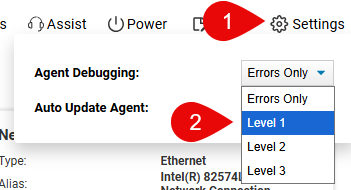
You can change logging levels in two ways:
- From the Device Details View (see image)
- A Registry update on Windows Machines – Set Debug Level (REG_SZ) to 1 HKEY_LOCAL_MACHINE\SOFTWARE\Avacee\SIP\
Type: REG_SZ
Name: DebugLevel
Value: 1
NOTE 1: Any Registry Change requires an Agent Restart
NOTE 2: If you see this – HKEY_LOCAL_MACHINE\SOFTWARE\Avacee\SIP\ApiDebugLevel | Value: 1, it is because ApiDebugLevel is created in the registry when setting debugging in the Web UI. But DebugLevel takes precedence.
What’s included in each Level
1: Has registration information
2 & 3: Is debug level details
LOCATION:
Windows Logs: Event Viewer Logs (Application and System)
Note: make sure logs are captured while both statuses (offline and online) are shown in the DEX portal
Is it a Windows Desktop OS (Windows 11) server?
When we first rolled out desktop OS vms we had intune policies that put the machine to sleep or disabled the NIC if it wasn’t interacted with for x amount of time. The fact that connecting with the remote console in the hypervisor makes it work again, maybe its waking the device/enabling the NIC?
These are Windows 2025 Servers.
Ah, so not Intune related. What hypervisor are you running on, if you can share?
Yeah, this is so weird how this is showing up. It’s as if the ControlUp agent is running in a user context. This is was when I logged off the system:
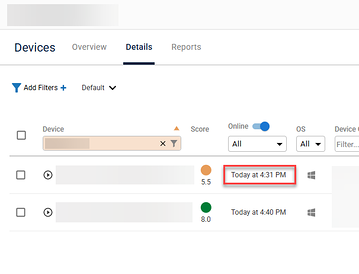
my guess is, either NIC is being temporarily disabled, or something is blocking traffic for processes not running on user context
Does the server have AV in place? There’s are paths that need to be whitelisted.
logs will let us know if service is even running during that time
@member – we do. We put in the exceptions for this.
@member I’m going to have to wait an hour to report. It’s strange, I have two servers that do the same thing and are configured the same way, but for the problem server I posted above, the last contacted counter goes up. But, when I go into the WEBUI and do something on that device like look at active processes, I am connected and I can see everything. and when I go back to the devices list, the last contacted counter resets to 0 and then starts to go up again.
Having the logs may help
Continue reading and comment on the thread ‘Troubleshooting Offline Windows Servers in ControlUp’. Not a member? Join Here!
Categories: All Archives, ControlUp for Desktops, ControlUp One Platform