
An employee is troubleshooting the upgrade process for ControlUp. They are updating from version 9.0.5.423 to 9.1.5.445 and have encountered an rpc error when trying to add a monitor to a specific region. The issue is due to the console using the Windows identity of the person running the console, so the user may need to run the console as a user with permission or deploy the monitor through PowerShell. The recommended upgrade order is console, monitor, data collector agents, and all other agents. The ControlUp website has a guide for upgrading and the employee has a further question about downloading the Real-Time DX Console.
Read the entire ‘Troubleshooting ControlUp Upgrade Process’ thread below:
Hello, working through my first upgrade for control up. Upgrading from 9.0.5.423 to 9.1.5.445. I’m starting with the monitor servers, I upgraded one of my monitor servers and then tried to remove and re-add the monitor from the console. The upgrade on the monitor server seems to have been good, all services are running afterwards but I’m getting the following rpc error from the console when I try and re-add the montior to the particular region. Any ideas?
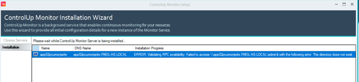
The console generally (more on that later) uses whatever Windows identity that you started the ControlUp Console.exe with to try and replace files on the remote system. So basically it tries to access \machine\c$\program files… as whatever user you started the console with.
In your case, it appears that the current user is not allowed to access that particular machine via windows file sharing.
Most likely because of permissions. But it could also be that you’re blocking windows file sharing via firewalls or policy.
Try and figure out if it is a permission issue. If so, run the console as a user that does have permission.
If it is a firewall issue, run the console from a different machine or even the machine that you’re trying to deploy the monitor to locally.
Last but not least, you can also deploy the monitor locally via Powershell. See https://support.controlup.com/docs/install-cumonitor
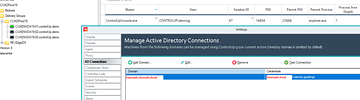
The only exception to the console generally uses whatever windows identity that you started the console with is when you have defined AD connections.
In my example, any machine in the example.domain.local domain will be deployed using example.local\dennis.geerlings. Even though the console is running under controlup.demo\dennisg
Also: no need to remove/redeploy to upgrade just directy upgrade
Ah, yes. We use two accounts in my environment, one is a ‘normal account’ and the other is an admin account. Since we moved to SAML auth for controlup, my ‘normal’ account is the one tied to my email address that I use to login, so technically I’m logging into controlup now as a non-admin user. I was able to get the rpc issue resolved and the agent uprgaded on the monitor server by adding my ‘non’ admin account as a local admin on the monitor server. Thanks! Just to clarify, at this point I will finish doing the monitor server agent updates, then do the same to the data collectors, then the console. Once the console is done, I should then be able to right click the monitors and update the Monitor version… right?
wrong order its console executable > monitor (not agent) > data collector agents > all other agents
if your permissions are that strict (and they should be!) I agree on Dennis that you should do the monitor upgrade using powershell (this also upgrades the agent) and maybe also the agent on the data collectors using powershell
Ok, guess I’m getting confused since there is a controlup monitor and controlup agent software installed on each ‘monitor server’ and I was under the impression I should not update the console until all ‘monitor servers’ had the ‘agent software’ updated.
the basic upgrade can all be done from the console (right click the monitors > upgrade and same for machine: right click and upgrade agent)
this is our guide https://support.controlup.com/docs/upgrade-guide-for-hybrid-cloud
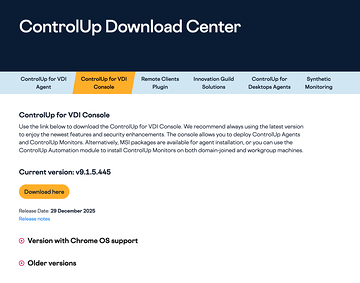
OK, thank you! one last, dumb question. But in that guide when it says to download the latest version of the Real-Time DX Console from our Download Center. Is that referring to the "ControlUpAgent-RealTimeAgentManager-Dotnet-net8-x64-signed-9.1.5.445" file? Because I don’t see a ‘realtime dx console’ download there….
by default you end up on that tab indeed but click on ControlUp for VDI Console
Continue reading and comment on the thread ‘Troubleshooting ControlUp Upgrade Process’. Not a member? Join Here!
Categories: All Archives, ControlUp for VDI