
The team discussed how to send an informational email alert when an event is triggered within the ControlUp folder. Different members offered their expertise and suggestions, including using the ControlUp Academy, creating a Windows Event Trigger, and incorporating a PowerShell script to format the email’s body. Ultimately, the team concluded that ControlUp does not allow triggering actions based on informational events, but recommendations were made to run a scheduled trigger or use task scheduler to execute the script at regular intervals.
Read the entire ‘Sending Email Alerts for ControlUp Folder Event Messages’ thread below:
, Hello All,
I am looking to send an email containing a summary of an event message whenever an informational event is logged on machines in the ControlUp folder. Specifically, I am interested in event 3508 on a Citrix cloud connector, which provides a summary of outage details after the LHC event is completed.
I have the following PowerShell script, but I am unsure if it preserves the formatting since it uses HTML. Here’s the script:
“`# Get the latest event log message
$event = Get-WinEvent -FilterHashtable @{LogName=’Application’; Id=$eventId} | Sort-Object TimeCreated -Descending | Select-Object -First 1
if ($event) {
# Get the machine name
$machineName = $env:COMPUTERNAME
# Format the message properly using HTML
$messageDetails = $event.Message -replace "(?i)(summary of the outage behavior:)", "
Summary of the Outage Behavior:
"
$messageDetails = $messageDetails -replace "Total brokered sessions: ", "
– Total brokered sessions: "
$messageDetails = $messageDetails -replace "Total reconnected sessions: ", "
– Total reconnected sessions: "
$messageDetails = $messageDetails -replace "Total machines in this zone: ", "
– Total machines in this zone: "
$messageDetails = $messageDetails -replace "Total distinct machine registrations: ", "
– Total distinct machine registrations: "
$messageDetails = $messageDetails -replace "ZoneUid: ", "
– ZoneUid: "
$messageDetails = $messageDetails -replace "Zone name: ", "
– Zone name: "
# Include the machine name in the message
$formattedMessage = "The machine ($machineName) acted as Local Host Cache during the outage.
"
$body = @"
Event Notification: LHC Event Complete
Event ID: $($event.Id)
Time: $($event.TimeCreated)
Message:
$formattedMessage
$messageDetails
"@
# Send email
Send-MailMessage -From $smtpFrom -To $smtpTo -Subject $subject -Body $body -SmtpServer $smtpServer -BodyAsHtml
} else {
Write-Host "Event ID $eventId not found."
}“`
Any suggestions to achieve this or best practices for sending HTML emails would also be greatly appreciated!
maybe @member @member @member or @member can help! (I guess only tomorrow though)
You might run into an issue where mail clients expect complete HTML. As in starting with an tag, valid doc types, etc.
Or maybe email clients are okay with partial HTML
If you save the generated HTML to a file and open it in a browser. Does the browser display it?
This will write the content to a file and open it in your default browser.
“`$body | set-content c:\temp\test.html
Start-Process "C:\temp\test.html"“`
I have two tasks to accomplish:
- Send an informational alert event message if an event is recorded on a machine within a ControlUp folder via email. (Not sure how to achieve this)
- Format the email using HTML to modify the message. (Seems to be possible if I run the PS script as an action which contains the email body formatting and then send the mail (included in script))
I would like to run this script on a folder that should trigger if Event ID 3508 is logged in the system. Since this is an informational event, I doubt we can use an informational event as a trigger.
Hello @member @member @member @member @member , Pls let me know your thoughts on this one.
I think you could solve this in product with a trigger at the event ID and then the action use email I believe 🙂
@member During my testing, I noticed that no follow-up actions were triggered for informational events. I assumed this was because ControlUp didn’t allow them. I’d like to confirm if that’s the case.
@member sorry forgot to ask in which product or console do you want to create this trigger ?
It’s in the RealTime Console
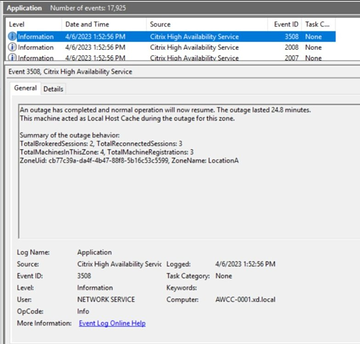
, to be clear, I would like to send the summary of below event – 3508
Image Source: https://community.citrix.com/tech-zone/learn/tech-briefs/local-host-cache-ha-daas/#wiki-header-31
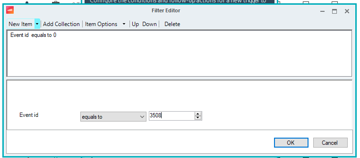
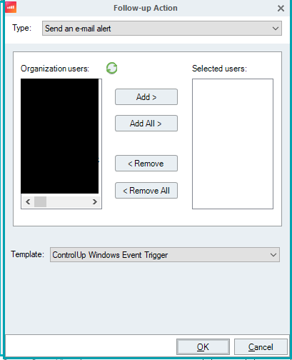
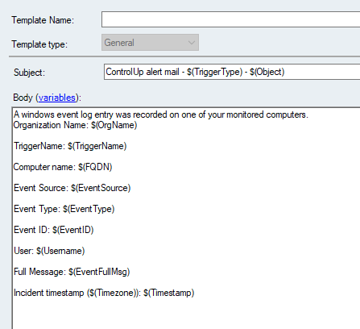
Ok I am new at ControlUp but I believe you can make a Windows Even Trigger in Triggers in the realtime console then at action you can chose to email then use email template ControlUp Windows Event Trigger and this will get the body of the Event too 🙂

can’t do informational events 😞
AHA well yeah that’s my lack of product knowledge (sorry 3 weeks with the company). Then yes you will need a script
then something like this might work its your script but I added a correct HTML body
“`function Get-EventLogDetails {
param (
[Parameter(Mandatory=$true)]
[int]$EventId,
[Parameter(Mandatory=$true)]
[string]$SmtpFrom,
[Parameter(Mandatory=$true)]
[string]$SmtpTo,
[Parameter(Mandatory=$true)]
[string]$Subject,
[Parameter(Mandatory=$true)]
[string]$SmtpServer
)
# Get the latest event log message
$event = Get-WinEvent -FilterHashtable @{LogName=’Application’; Id=$EventId} | Sort-Object TimeCreated -Descending | Select-Object -First 1
if ($event) {
# Get the machine name
$machineName = $env:COMPUTERNAME
# Format the message properly using HTML
$messageDetails = $event.Message -replace "(?i)(summary of the outage behavior:)", "<br /><br /><strong>Summary of the Outage Behavior:</strong><br />"
$messageDetails = $messageDetails -replace "Total brokered sessions: ", "<br />- Total brokered sessions: "
$messageDetails = $messageDetails -replace "Total reconnected sessions: ", "<br />- Total reconnected sessions: "
$messageDetails = $messageDetails -replace "Total machines in this zone: ", "<br />- Total machines in this zone: "
$messageDetails = $messageDetails -replace "Total distinct machine registrations: ", "<br />- Total distinct machine registrations: "
$messageDetails = $messageDetails -replace "ZoneUid: ", "<br />- ZoneUid: "
$messageDetails = $messageDetails -replace "Zone name: ", "<br />- Zone name: "
# Include the machine name in the message
$formattedMessage = "The machine ($machineName) acted as Local Host Cache during the outage.<br />"
$body = @"
<meta charset="UTF-8">
<meta name="viewport" content="width=device-width, initial-scale=1.0">
<title>Event Notification</title>
<strong>Event Notification: LHC Event Complete</strong><br /><br />
<strong>Event ID:</strong> $($event.Id)<br />
<strong>Time:</strong> $($event.TimeCreated)<br /><br />
<strong>Message:</strong><br />
$formattedMessage
$messageDetails
"@
# Send email
Send-MailMessage -From $SmtpFrom -To $SmtpTo -Subject $Subject -Body $body -SmtpServer $SmtpServer -BodyAsHtml
} else {
Write-Host "Event ID $EventId not found."
}
}“`
and execute it like this
Define the parameters for the function
$EventId = 3508 # Replace with the Event ID you want to search for
$SmtpFrom = “alerts@example.com” # Replace with your sender email address
$SmtpTo = “admin@example.com” # Replace with the recipient email address
$Subject = “LHC Event Notification” # Replace with the subject for the email
$SmtpServer = “smtp.example.com” # Replace with your SMTP server address
Call the function with the parameters
Get-EventLogDetails -EventId $EventId -SmtpFrom $SmtpFrom -SmtpTo $SmtpTo -Subject $Subject -SmtpServer $SmtpServer
didnt test it btw
You could also run that as a scheduled trigger. Like run it once an hour and look back up to 1 hour with Get-WinEvent
Or run it every 5 minutes… whatever the time frame is 😄
Yet*
@member Thanks, can u help me how could I run a scheduled trigger within ControlUp?
this can help – https://www.controlup.com/resources/blog/controlup-scheduled-triggers-for-alerting-and-automation/
and https://support.controlup.com/docs/setting-up-triggers
@member @member Thank you for your input. However, I would like to clarify my question: what specific action do I need to consider in order to trigger this script? I am looking for a solution that does not rely on Windows informational events or running a trigger at regular intervals, as this would require an additional action to execute the follow-up script. I hope my question is clear.
Also, can you let me know if there’s a possibility of running some scripts on machine at regular intervals from ControlUp like a task scheduler?
This could allow the script to run without an action that actually triggers it, and I can incorporate the entire logic for catching and waiting for events within a PowerShell script
I would like to thank @member for confirming that the ControlUp is not allowing Informational events to be used within trigger.
@member @member @member @member – Requesting you all to provide any ideas or suggestions on how could I achieve the same? Any of your valuable insights are much appreciated. Thanks !
Continue reading and comment on the thread ‘Sending Email Alerts for ControlUp Folder Event Messages’. Not a member? Join Here!
Categories: All Archives, ControlUp for VDI, ControlUp Scripts & Triggers